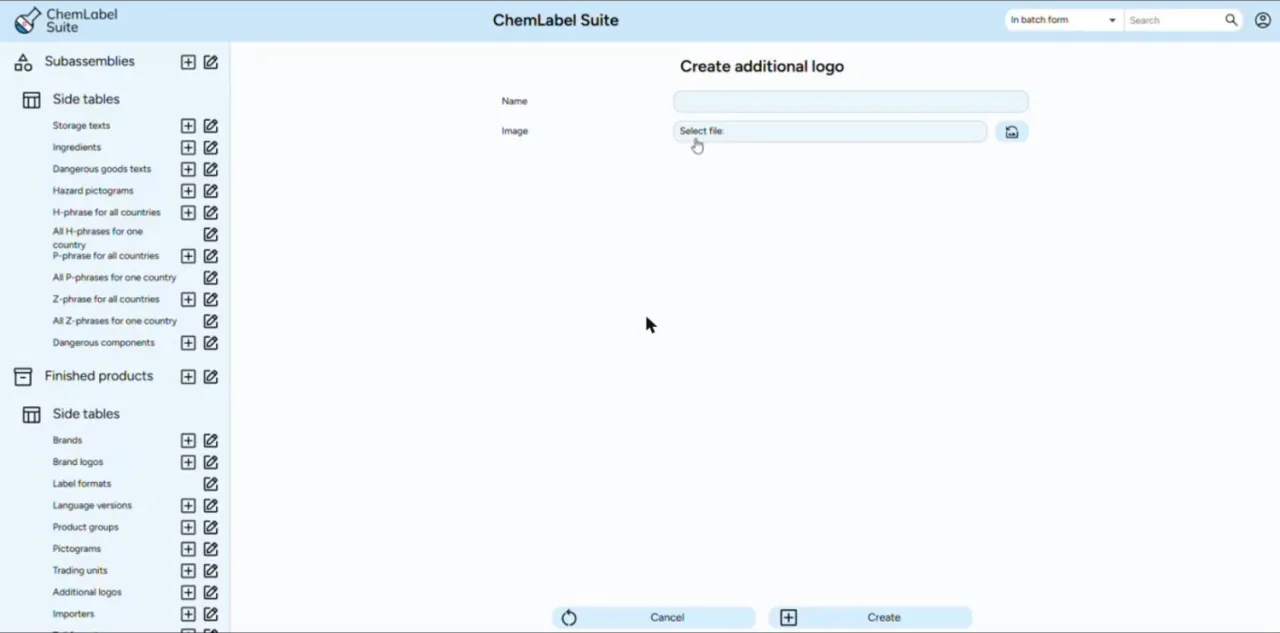
Create additional logos
Step 2 of 6
Video 10 of 27
0:24 min
The video is only loaded from YouTube (youtube-nocookie.com) once you click.
What is it about? Additional logos are images that are to appear on the label in addition, for example the logo of a certification body or, in cosmetics, a shelf-life symbol.
Step by step
- Under “Finished products” › “Side tables”, next to “Additional logos”, click the plus symbol.
- Assign a name, “Shelf life” in the example.
- Upload the image as a PNG file via “Select file”.
- Save with “Create”.
Good to know
- In the product you select the additional logos under “Other fields”.