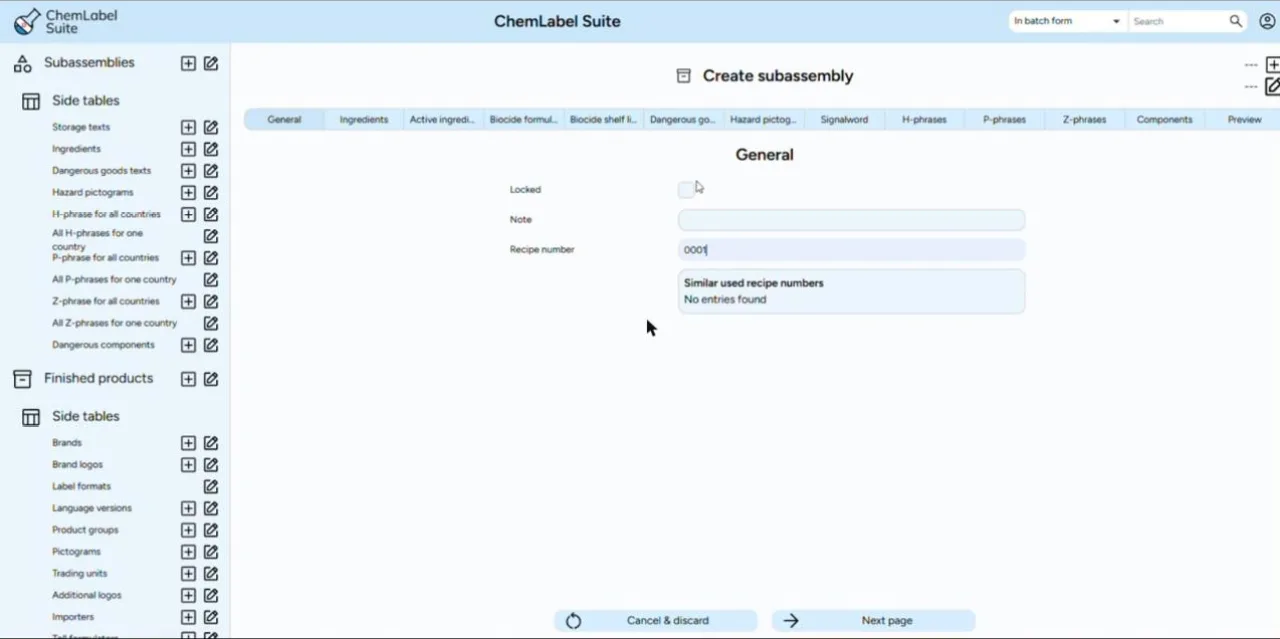
Create sub-assemblies
Step 5 of 6
Video 25 of 27
2:48 min
The video is only loaded from YouTube (youtube-nocookie.com) once you click.
What is it about? The sub-assembly is the formulation with ingredients and CLP classification. The hazard-relevant information is stored here, and products build on it.
Step by step
- Assign a number and a note.
- Assign ingredients and active substances.
- Enter the framework formulation and shelf life.
- Choose dangerous goods, hazard pictograms and signal word.
- Assign H-, P- and Z-phrases and hazard-determining components.
- State frost sensitivity and storage.
- Check in the preview and save.
Good to know
- If a classification changes, you change it on the sub-assembly. With the next PDF it applies to all products based on it.
- With “Locked” you take a sub-assembly out of use: products based on it can no longer be selected for batches.
Chapters in the video
- 0:00 Number and note
- 0:47 Ingredients and active substances
- 1:04 Biocide formulation and shelf life
- 1:30 Dangerous goods and CLP classification
- 1:59 Z-phrases and hazardous components
- 2:17 Frost sensitivity and storage
- 2:36 Preview and save