Label layout part 1 – Create fields
Step 4 of 6
Video 21 of 27
3:07 min
The video is only loaded from YouTube (youtube-nocookie.com) once you click.
What is it about? In the label editor you design the layout once and use it for several products. Part 1 shows how to create a new layout and place fields.
Step by step
- Name the layout and define size, blank and label side.
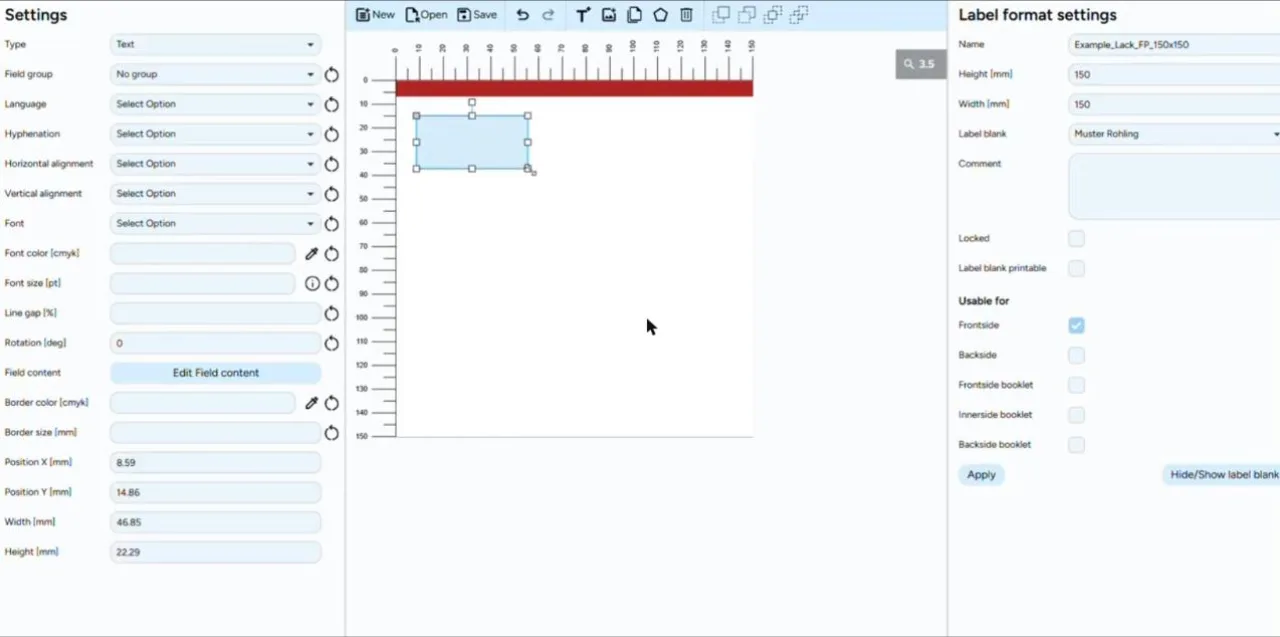
- Add a text or image field and place it roughly with the mouse.
- Set position and size exactly via X, Y, width and height in millimetres.
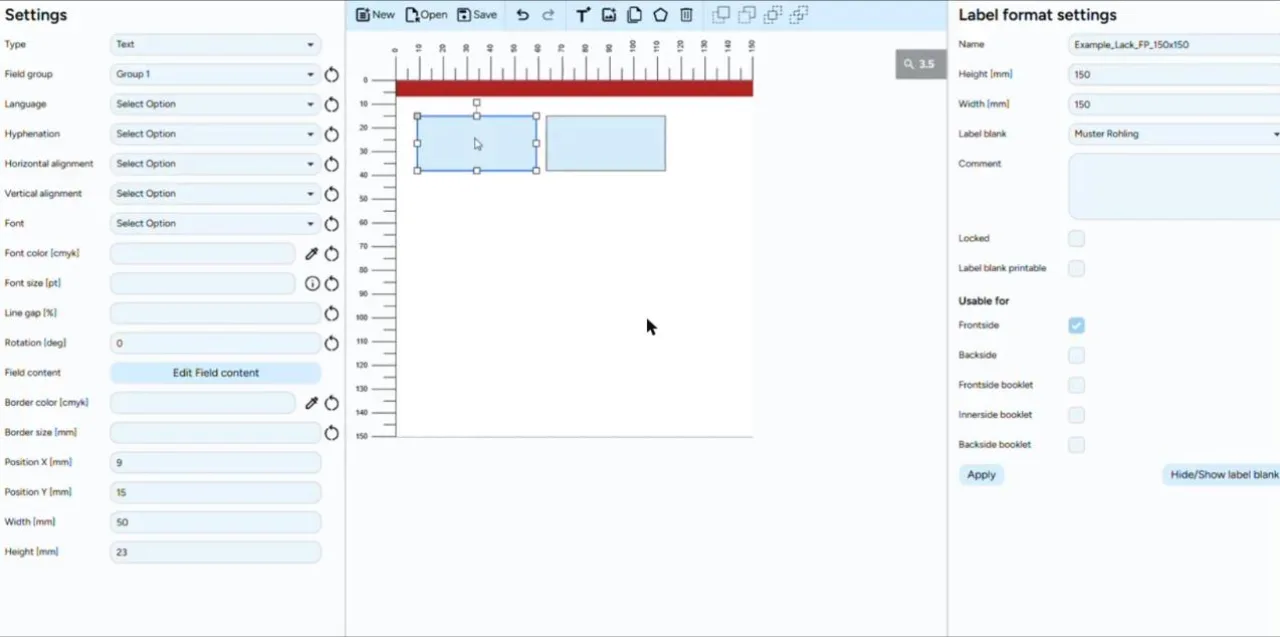
- Copy fields and combine them into field groups.
- For text fields, set language, hyphenation, alignment, font, size, CMYK colour, rotation and border.
Good to know
- Fields in a group automatically adopt the smallest font size at which everything fits.
Chapters in the video
- 0:00 Name, size, blank and label side
- 0:24 Text and image fields
- 0:49 Exact position and size
- 1:26 Copy fields and field groups
- 1:50 Language and hyphenation
- 2:05 Text alignment
- 2:20 Font, colour and size
- 2:48 Rotation and border