Create label blanks
Step 4 of 6
Video 20 of 27
0:33 min
The video is only loaded from YouTube (youtube-nocookie.com) once you click.
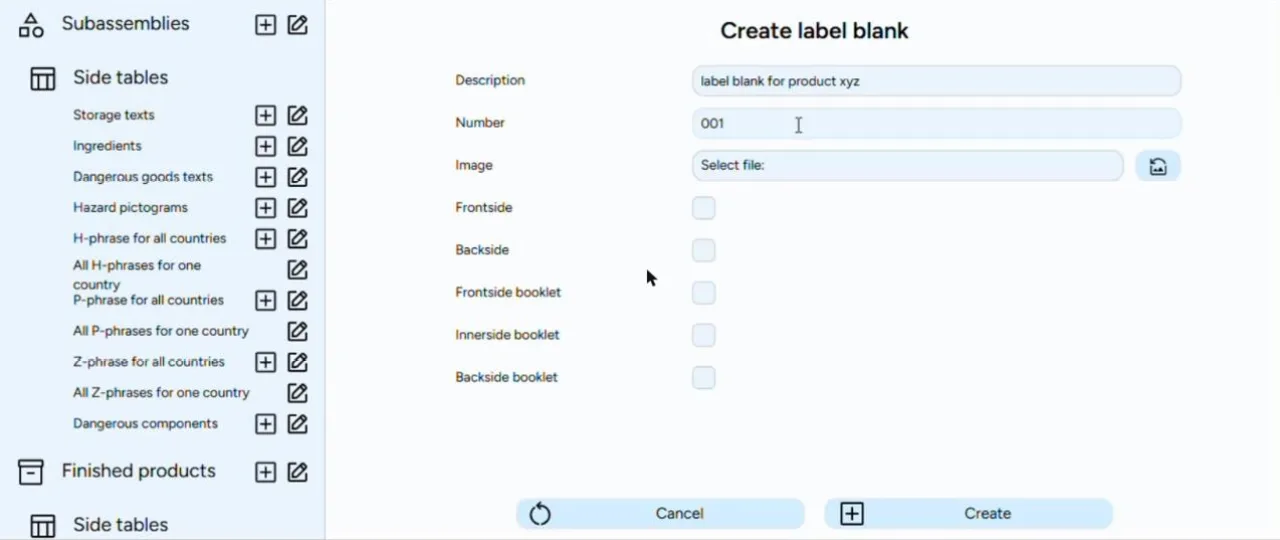
What is it about? A blank is the image of the unprinted label. You define which side it applies to, and for booklets also the inner side.
Step by step
- Under “Finished products” › “Side tables”, next to “Label blanks”, click the plus symbol.
- Assign a description and a number.
- Upload the image of the blank as a PNG file.
- Choose the side: Frontside, Backside or, for booklets, Frontside booklet, Innerside booklet and Backside booklet.
- Save with “Create”.