Create language versions
Step 3 of 6
Video 17 of 27
0:48 min
The video is only loaded from YouTube (youtube-nocookie.com) once you click.
What is it about? The language version defines which languages appear on the label and in which order. The number of languages is not limited.
Step by step
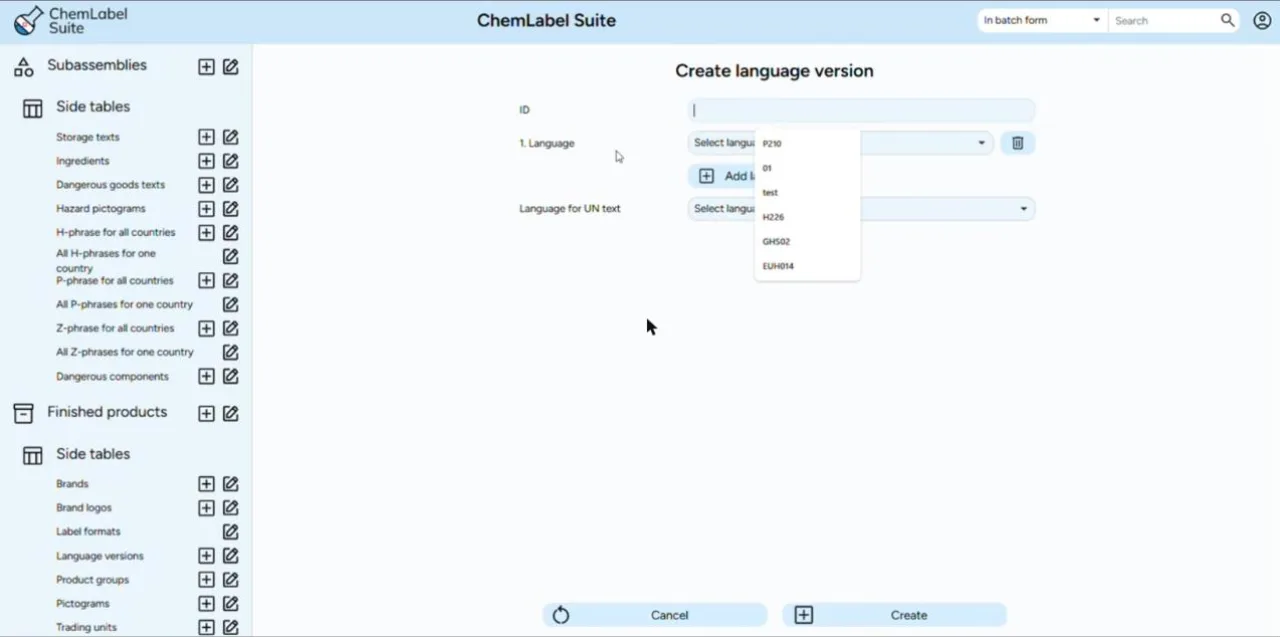
- Under “Finished products” › “Side tables”, next to “Language versions”, click the plus symbol.
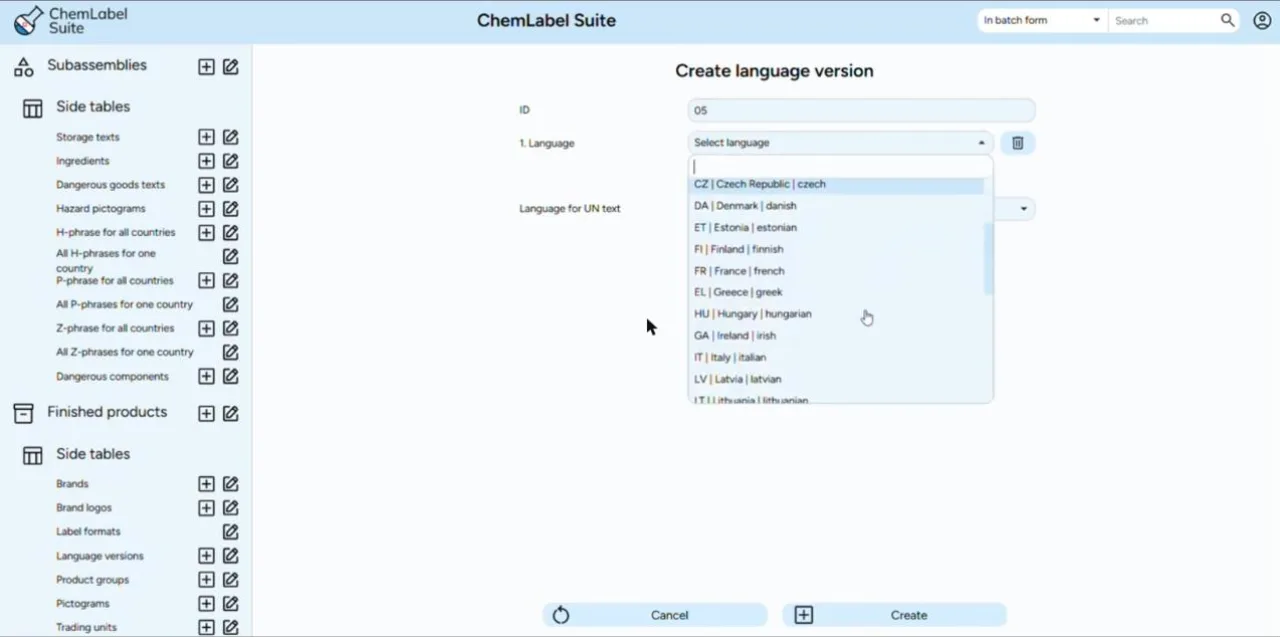
- Assign an ID and choose the first language (1. Language).
- Add as many further languages as you like (“Add language”). The order corresponds to the order on the label.
- Choose the language for the dangerous goods text (“Language for UN text”). It is mandatory.
- Save with “Create”.
Good to know
- Booklets grow with every language: the software creates exactly as many pages as the content needs.